Output Settings Window
The Output Settings Window lets you trigger several actions on a selected Write/DeepWrite/WriteGeo node. Simply select a Write/DeepWrite/WriteGeo in your nodegraph and press the custom shortcut combination that you have assigned as mentioned above:
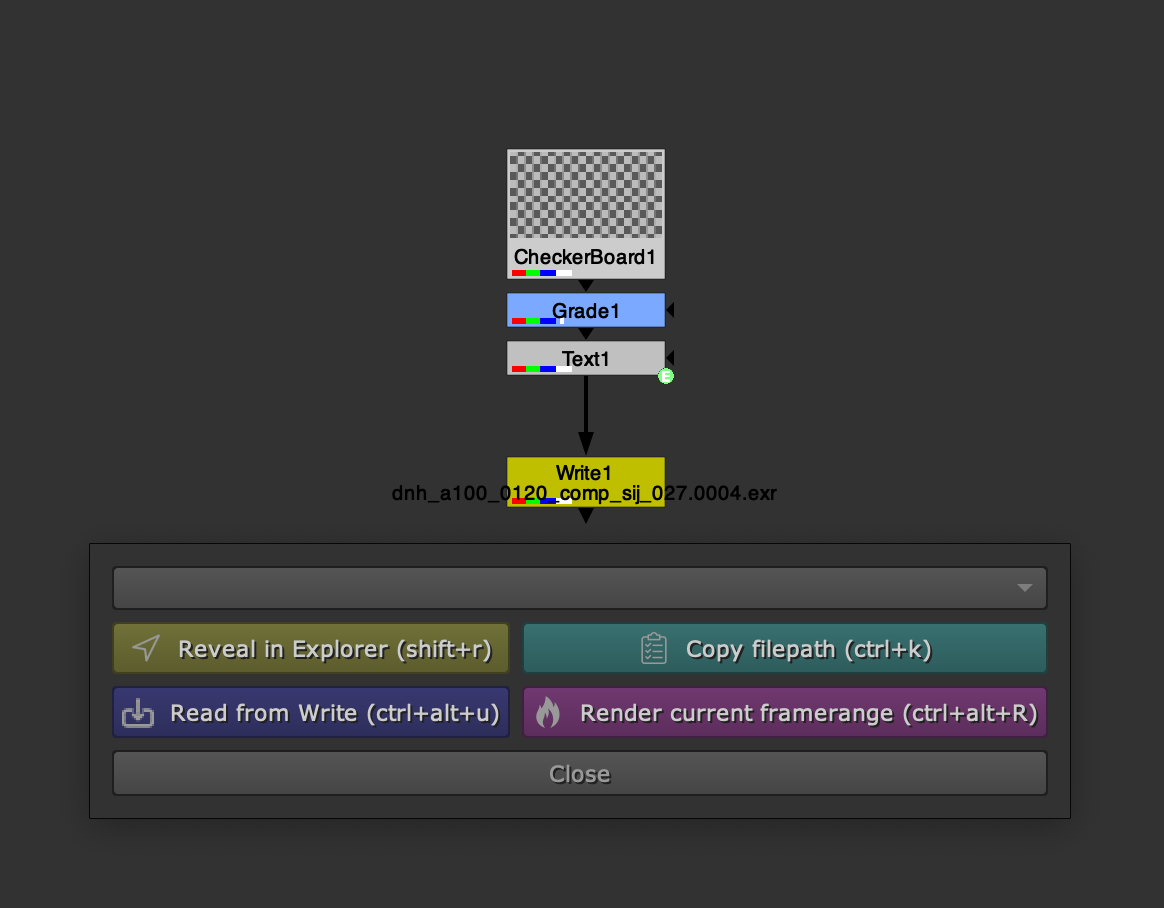
Preset: At the top you find a dropdown to set up your selected output node by a preset. These presets set up any knob value as configured. You can also assemble output paths fully automatically based on your currently set working file path. Configuring presets gets described in more detail in the Presets section.
Reveal in explorer: Click to reveal the output path in your explorer.
Copy filepath: Click to copy the output path to your clipboard.
Read from Write: Click to create a Read from your selected Write node. This works equally for selected DeepWrite and WriteGeo nodes.
Render current framerange: Click to quickly render all selected output nodes with the currently set up frame range of your currently used Viewer node.
Note
The Output Settings Window auto closes after having executed any action.
Set up output node by preset
The presets section lets you define output presets for all your output nodes. You can then apply a preset to a selected output node by launching the Output Settings Window and selecting a preset from the preset dropdown menu as seen below: