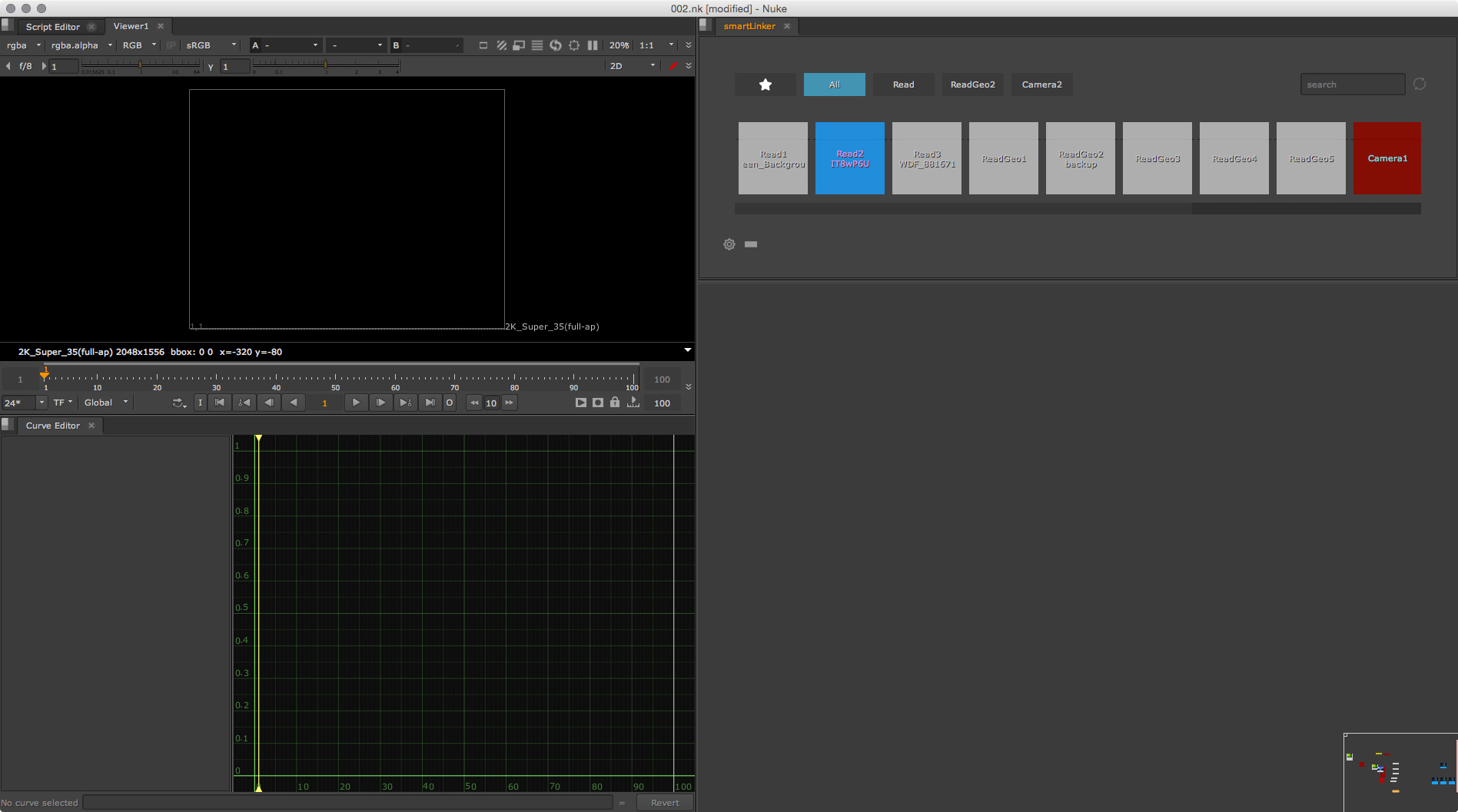
Accessing smartLink
smartLink can be run as a floating- and a dockable window.
Floating smartLinker
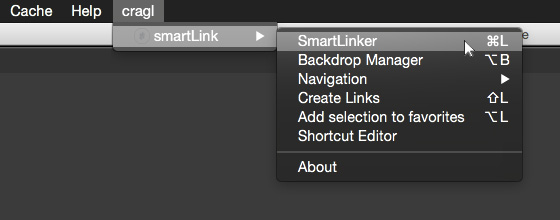
To launch the floating window navigate to your menubar and execute cragl -> smartLink -> smartLinker. Alternatively you can use the shortcut Ctrl+L (Linux, Windows) or cmd+L (Mac). In the Shortcut Editor you can also change the shortcut to your needs.
The smartLinker window launches and will look like this:
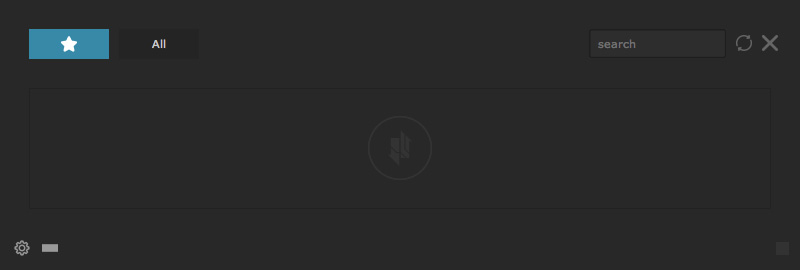
By default, the smartLinker will be placed under your cursor. In the settings you can change this behavior to launch it always in the middle of your screen.
Dockable smartlinker
smartLink offers a dockable window so that you can integrate it into your layout which can then be saved. This will make the smartLinker permanently visible for you. To create a dockable smartLinker, navigate to one of your pane menus and choose Window -> Custom -> smartLinker.
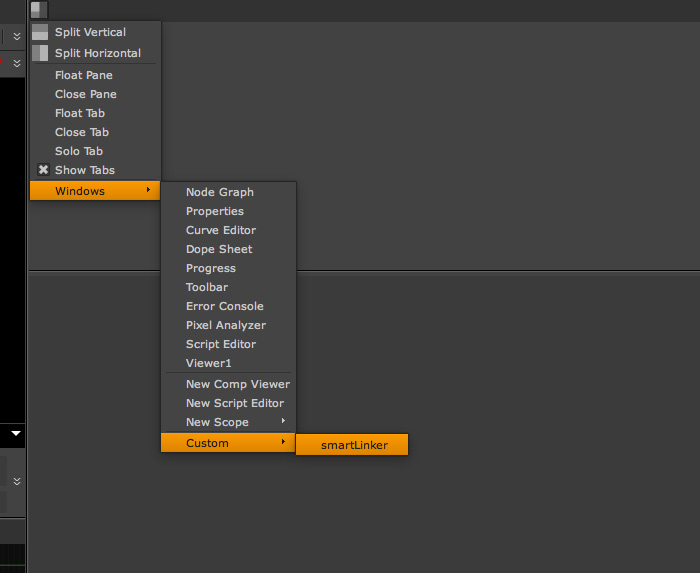
The smartLinker will be added to your layout. You can then go ahead and save it to your layouts by choosing Workspace -> Save workspace… from your menubar.