Accessing
After the installation has finished, restart Nuke and you will now find the new sub menu smartElements inside your cragl menu. It contains following three commands as seen below:
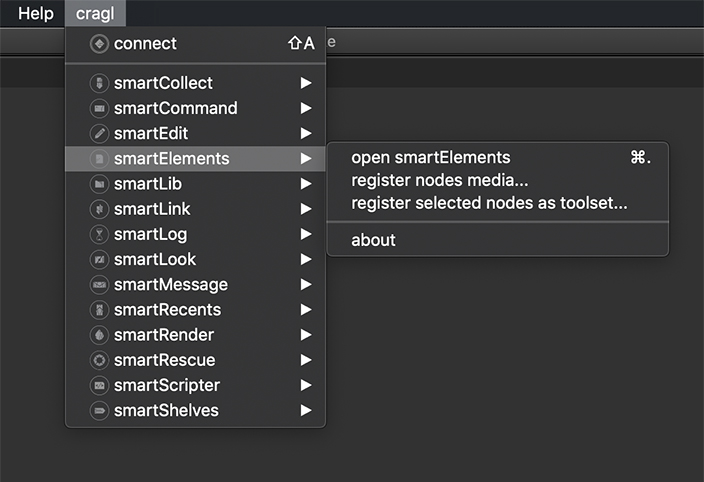
open smartElements: Opens the smartElements browser. The shortcut is
Ctrl + .(Linux/Windows) orcmd + .(MacOS)open ActionVFX Bridge: Opens the ActionVFX library version of smartElements. This version shows only smartElements libraries. You can log into your ActionVFX account and download your libraries. For the ingestion process you do need a smartElements license. The shortcut is
Ctrl + Shift + .(Linux/Windows) orcmd + Shift + .(MacOS)open ingestion matrix: Click to open the ingestion matrix tha lets you ingest elements into smartElements.
register nodes media: Register the selected nodes media to smartElements. Further information can be found in the main window section.
register selected nodes as toolset: Click to launch the register toolset window in order to register the selected nodes as toolset in smartElements.
reveal element from selected node: Click to reveal the element that your currently selected Read node references.
about: Opens the smartElements about window
Tip
If required, you can change the shortcuts as you like. Simply open the
smartElement’s menu.py file and update the shortcuts as needed.
Standalone
smartElements can also be launched in standalone mode outside of Nuke. Inside your smartElements installation folder you find a ‘cp’ folder for each supported python version. We stay in line with the Python interpreter versions that are shipped with Nuke. Here is an overview of the cp versions and their related Nuke version:
cp27: Nuke-12 and below
cp37: Nuke-13
cp39: Nuke-14
cp310: Nuke-15
cp311: Nuke-16 / Nuke-17
Choose the cp folder of the Python interpreter you have installed on your machine. You can of course also have installed multiple Python versions on your machine, that is no problem.
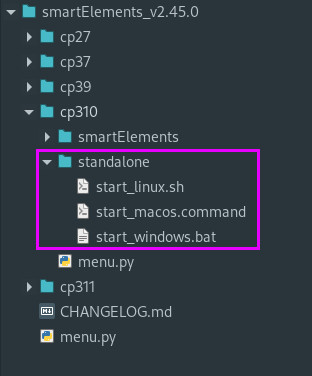
Inside each ‘cp’ folder you find a ‘standalone’ folder. Inside that one you find a batch file to launch smartElements in standalone mode.
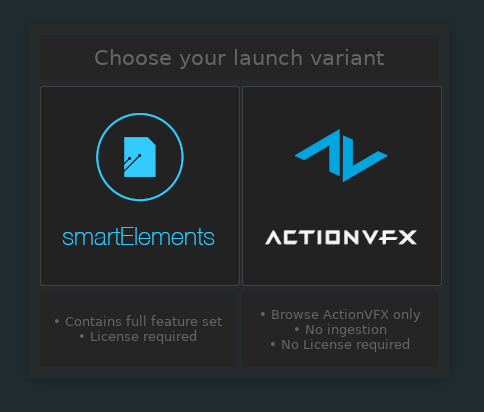
When launching in standalone mode you are asked about the version to launch. There are two version variants to choose from:
smartElements - Contains the full feature set - A license is required to ingest data
ActionVFX - Lets you browse ActionVFX libraries only - No license required - No ingestion available. You require a license to ingest elements.
When launching in standalone mode for the first time make sure to drag the launch file that corresponds to your operating system into a new terminal window and press enter to execute the batch file. By doing so, you make sure that in case of any issue, the terminal window keeps staying open instead of auto closing.
Note: In some situations and depending on your machine you might need to grant execution access to the launcher batch file first. This is a one time process. In that case, for Linux/MacOS users enter this in your terminal:
sudo chmod +x <path to launcher file>
Where <path to launcher file> is the absolute path of the launcher file.
For Windows users follow these steps:
Right-click on the .bat file.
Select Properties.
Under the Security tab make sure your user account has “Read & Execute” permissions.
Please note that you will need a Qt binding (PySide2 or PySide6) installed for your used Python interpreter. For media ingestion you require Nuke and will need point smartElements to its executable.
The easiest way to get PySide2/ PySide6 installed is by using pip, e.g.:
pip install PySide2
If you have several Python interpreter versions installed on your machine you can also specify for which Python version to install it. E.g.
python -m pip install PySide2
Make sure the python command entered corresponds to the Python interpreter
version your are using to launch smartElements with.
Note
All launcher files use the command python as executable. Make sure you
use the correct Python version depending on the cp folder you choose. When
getting the error message that contains bad magic number... then you
are running with a different major.minor Python interpreter version.
Depending on your installed Python versions you might want to change
python to the Python version alias on your system, e.g. python3.11
but that depends on what you have installed on your end. Alternatively,
use python311 and simply create a copy of your python.exe and call it
python311.exe so that this executable gets found on your system. Or
replace python in the launcher file with the absolute path of your
python interpreter.
If you have any question or trouble with the setup, please let us know, we are happy to help.